Create Custom Menu in WordPress Dashboard
Complete tutorial on create custom menu in wordpress dashboard. Discover practical examples, implementation tips, and expert advice for WordPress and WooCo
Read More →
WooCommerce – Create a Custom Product Data Tab. This tutorial shows how to add a new product tab in the WooCommerce product editor on the admin edit screen. This is helpful when you need to store or display additional product information. You can add your own custom fields or layout by creating a custom tab. Product data tabs on the admin screen are controlled via this filter:
<?php
add_filter('woocommerce_product_data_tabs', 'my_custom_product_tab', 10, 1);
?>
The filter is defined inside the plugin file: /woocommerce/includes/admin/meta-boxes/class-wc-meta-box-product-data.php It looks like this:
$tabs = apply_filters(
    'woocommerce_product_data_tabs',
    array(
        'general'        => array(
            'label'    => __( 'General', 'woocommerce' ),
            'target'   => 'general_product_data',
            'class'    => array( 'hide_if_grouped' ),
            'priority' => 10,
        ),
        // ... other tabs ...
    )
);
To add your custom product tab, use:
// Add a custom tab
function add_custom_product_data_tab($tabs) {
    $tabs['custom_tab'] = array(
        'label'    => __('Custom Tab', 'your-text-domain'),
        'target'   => 'custom_product_data',
        'class'    => array('show_if_simple', 'show_if_variable'),
    );
    return $tabs;
}
add_filter('woocommerce_product_data_tabs', 'add_custom_product_data_tab');
Next, you need to define the panel to display inside the tab:
// Add the panel content
function add_custom_product_data_panel() {
    global $post;
    ?>
    <div id="custom_product_data" class="panel woocommerce_options_panel">
        <?php // Insert your custom fields or UI elements here ?>
    </div>
    <?php
}
add_action('woocommerce_product_data_panels', 'add_custom_product_data_panel');
Here’s how it appears in the product edit screen: 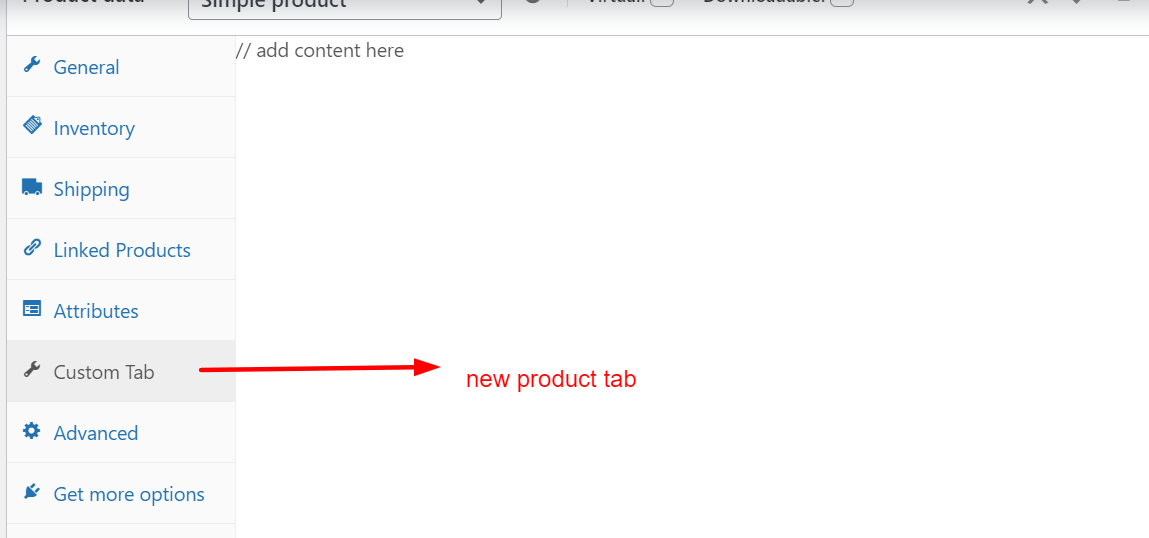 You can place this code inside your theme's `functions.php` file or use a custom plugin. Once done, navigate to a product in the admin area to view your new custom tab and start customizing.
Search our archives or reach out to our team for solutions and expert advice.