Create Custom Menu in WordPress Dashboard
Complete tutorial on create custom menu in wordpress dashboard. Discover practical examples, implementation tips, and expert advice for WordPress and WooCo
Read More →Customize the WooCommerce product editing experience by injecting new data tabs using the woocommerce_product_data_tabs filter. Define tab labels, target IDs for content panels, and visibility classes like show_if_simple to conditionally display settings based on product type. Use the woocommerce_product_data_panels action to render the matching HTML container for your custom fields. This approach allows developers to organize complex product attributes, third-party integrations, or custom metadata into clean, native-looking sections within the standard WooCommerce product management interface.

Looking to include more custom fields in WooCommerce product settings? You can add a custom tab in the admin product editor using WooCommerce filters. Custom product tabs are part of the tab group defined using:
<?php
add_filter('woocommerce_product_data_tabs', 'my_custom_product_tab');
?>
WooCommerce defines default tabs like Inventory, Shipping, and General in: /woocommerce/includes/admin/meta-boxes/class-wc-meta-box-product-data.php Here’s the structure for adding a new one:
// Register new custom tab
function add_custom_product_data_tab($tabs) {
    $tabs['custom_tab'] = array(
        'label'    => __('Custom Tab', 'your-text-domain'),
        'target'   => 'custom_product_data',
        'class'    => array('show_if_simple', 'show_if_variable'),
    );
    return $tabs;
}
add_filter('woocommerce_product_data_tabs', 'add_custom_product_data_tab');
After adding the tab, create a matching panel for content display:
// Display panel content for the tab
function add_custom_product_data_panel() {
    global $post;
    ?>
    <div id="custom_product_data" class="panel woocommerce_options_panel">
        <?php // Add form fields, settings, or other content here ?>
    </div>
    <?php
}
add_action('woocommerce_product_data_panels', 'add_custom_product_data_panel');
Your new tab will look like this in the admin editor: 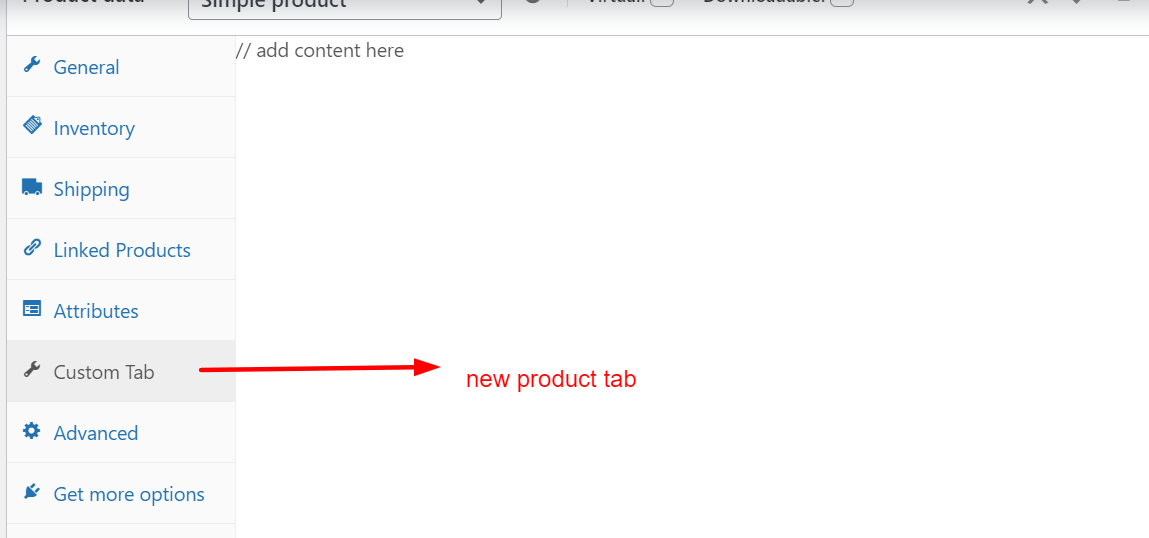 To implement this, insert the code in your active theme’s `functions.php` or via a custom plugin. You can then enhance WooCommerce product settings with additional custom fields or controls.
Search our archives or reach out to our team for solutions and expert advice.